Category: Social Media Marketing

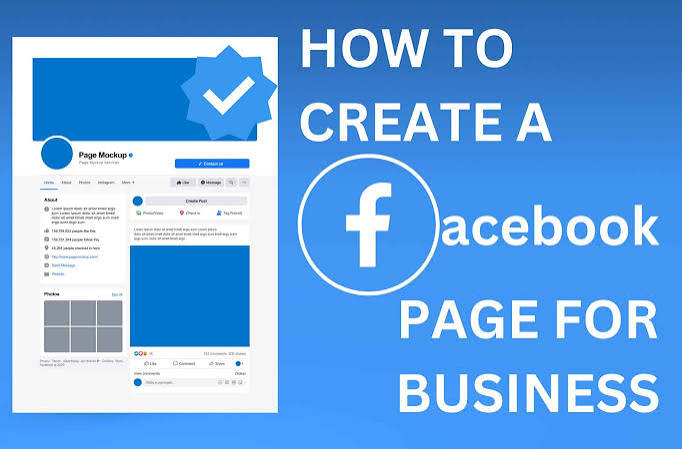
  • How to Create a Facebook Business Page Easily

    How to Create a Facebook Business Page Easily

    In today’s digital world, having an online presence is important for almost every business. Whether you own a small shop, run a service-based business, manage a fashion brand, or work as a freelancer, a Facebook Business Page can help you connect with customers and promote your business online. Facebook provides businesses with tools to share content, communicate with customers, promote products and services, and build brand awareness.

    In this guide, you will learn how to create a Facebook Business Page easily, step by step.

    What Is a Facebook Business Page?

    A Facebook Business Page is a public profile designed for businesses, brands, organizations, creators, and professionals. It is different from a personal Facebook profile because it is created specifically for business communication and promotion.

    For example, if you have a clothing store called ABC Fashion, you can create a Facebook Page using the name ABC Fashion and use it to display your products, share fashion updates, communicate with customers, and promote special offers.

    Why Should You Create a Facebook Business Page?

    Creating a Facebook Business Page can provide several useful benefits for your business.

    1. Build an Online Presence

    A Facebook Page gives your business a public presence on one of the world’s major social media platforms.

    2. Reach Potential Customers

    You can share content with people who are interested in your products or services and build an audience over time.

    3. Promote Products and Services

    You can use photos, videos, posts, and other content to showcase what your business offers.

    4. Communicate With Customers

    Customers can contact your business through Facebook messages and other available communication options.

    5. Share Business Information

    You can provide important details such as your website, phone number, location, business hours, and services.

    6. Support Advertising

    A Facebook Business Page can be used with Meta’s advertising tools to create promotional campaigns for your business.

    Step 1: Log In to Facebook

    The first step is to open Facebook and log in to your personal Facebook account.

    After logging in, open the Facebook menu and select Pages. Look for the option to create a new Page.

    Step 2: Enter Your Business Name

    The next step is to choose your Page name.

    Your Page name should represent your business, brand, shop, service, or professional activity. Try to keep it simple and easy to remember.

    For example:

    • ABC Fashion
    • Digital Marketing Academy

    It is useful to keep your Facebook Page name consistent with your brand name on other platforms.

    Step 3: Select a Business Category

    After entering your Page name, choose a category that best describes your business.

    Examples include:

    • Clothing Store
    • Beauty, Cosmetic & Personal Care
    • Education
    • Digital Creator
    • Marketing Agency
    • Restaurant
    • Local Service
    • Shopping & Retail

    Choose the category that most accurately represents your business. This helps visitors understand what type of business your Page represents.

    Step 4: Add a Business Description

    Now add a short description of your business.

    Your description should explain what your business does and what products or services you provide.

    For example:

    “We provide trendy fashion wear, stylish outfits, and the latest clothing designs for every occasion.”

    Keep your description clear, natural, and useful. Avoid adding unnecessary information.

    Step 5: Add a Profile Picture

    Your profile picture is one of the first things people see when they visit your Page.Make sure your profile image is high quality and remains recognizable when displayed in a small size.

    Step 6: Add a Cover Photo

    A cover photo appears at the top of your Facebook Page and provides a larger space to represent your brand.

    You can use your cover photo to show:

    • Your products
    • Services
    • Brand message
    • New collection
    • Special offer
    • Business identity

    For example, a fashion business could use a professional image of its latest collection.

    Use a clean design and avoid filling the cover image with too much text.

    Step 7: Add Your Business Information

    Once the basic Page is created, complete your business information.

    Depending on your business, you may be able to add:

    • Phone number
    • Email address
    • Website
    • Business location
    • Opening hours
    • Services
    • WhatsApp contact

    Accurate information makes it easier for customers to contact your business and understand when and where you are available.

    Step 8: Create a Facebook Username

    A Facebook username makes your Page easier to identify and share.

    For example, if your business is ABC Fashion, you could use a username such as:

    @ABCFashion

    Try to choose a username that is closely related to your business name and is easy to remember.

    If your preferred username is already taken, choose a relevant variation.

    Step 9: Add an Action Button

    An action button can encourage visitors to take an important action.

    Depending on your business and available Facebook options, you may see buttons such as:

    • Call Now
    • Send Message
    • WhatsApp
    • Shop Now
    • Learn More
    • Book Now

    Choose an action that matches your business objective.

    For example, a service provider may prefer Call Now or Send Message, while an online store may use Shop Now.

    Step 10: Publish Your First Post

    After setting up your Page, publish your first post. Your first post can introduce your business to your audience.

    For example:

    “Welcome to ABC Fashion! We bring you the latest fashion trends, stylish outfits, and beautiful designs for every occasion. Follow our Page for new collections, fashion ideas, and special updates.”

    You can also share product photos, educational information, videos, Reels, customer reviews, behind-the-scenes content, or special announcements.

    Step 11: Connect Your Instagram Account

    If your business also has an Instagram professional account, connecting it with your Facebook Page can make social media management easier.

    When your accounts are connected appropriately, you can manage certain Facebook and Instagram activities together. This can save time when publishing content and communicating with customers.

    Step 12: Use Meta Business Suite

    Meta Business Suite provides tools for managing business activities across Facebook and Instagram.

    Depending on the features available to your account, you can use it to:

    • Create and manage posts
    • Manage messages
    • Review content performance
    • View insights
    • Manage Facebook and Instagram activities
    • Organize your social media workflow

    For beginners, learning Meta Business Suite can be useful once the Facebook Business Page has been created.

    Tips to Grow Your Facebook Business Page

    Creating a Page is only the first step. The next goal is to provide useful content and build relationships with your audience.

    Post Consistently

    Create a regular posting schedule. You can share product updates, educational posts, videos, Reels, tips, announcements, and behind-the-scenes content.

    Consistency helps keep your Page active.

    Use High-Quality Visuals

    Images and videos are important for social media marketing. Use clear photographs, attractive designs, and videos that represent your brand professionally.

    Engage With Your Audience

    Respond to relevant comments and messages. Answer customer questions clearly and politely. Engagement can help you build relationships with your audience.

    Use Relevant Keywords

    Use words related to your business naturally in your Page description and content. For example, a clothing business can naturally use terms such as fashion, clothing, dresses, ethnic wear, or women’s fashion when they accurately describe its products.

    Monitor Page Insights

    Use available Facebook or Meta insights to understand how your content performs. You may be able to review information related to reach, engagement, audience activity, and content performance.

    This information can help you understand which types of content your audience responds to.

    Common Facebook Business Page Mistakes

    Beginners sometimes create a Page but leave important information incomplete. Avoid using an unclear business name, incomplete contact information, poor-quality profile images, or irrelevant content.

    Do not make every post purely promotional. Try to provide useful, interesting, educational, or entertaining content depending on your audience.

    Conclusion

    Creating a Facebook Business Page is a simple way to establish an online presence for your business. You can start by logging into Facebook, creating a Page, choosing your business name and category, adding a description, uploading profile and cover photos, and entering your business information.

    A successful Facebook Business Page requires more than simply creating an account. Regular content, accurate business information, quality visuals, customer interaction, and performance monitoring can help you build a professional and useful social media presence over time.
  • YouTube Promotion: Grow Your Channel Faster

    YouTube Promotion: Grow Your Channel Faster

    One of the most widely used websites for sharing videos, growing a following, advertising a business, and opening up new internet prospects is YouTube. But publishing videos alone isn’t always sufficient to expand a channel. YouTube promotion expands the audience for your videos, boosts views, draws in subscribers, and strengthens your online presence.

    Independent of your level of experience—beginner, content producer, business owner, or marketer—learning how to promote your YouTube channel will help you get better outcomes. Effective YouTube promotion techniques, their advantages, and how to use them to expand your channel more quickly are all covered in this article.

    What Is YouTube Promotion?.

    YouTube promotion entails employing several tactics to expand the audience and visibility of your YouTube account and content. Optimizing video titles and descriptions, posting videos on social media, making interesting thumbnails, utilizing pertinent keywords, working with other artists, and employing paid advertising are all examples of promotion.

    YouTube Promotion

    Why Is YouTube Promotion Important?

    YouTube has millions of videos uploaded by creators. Because of this competition, it can be difficult for a new channel to reach its target audience.

    Effective promotion can help your channel in several ways:

    • Increase video views
    • Get more subscribers
    • Improve audience engagement
    • Build brand awareness
    • Reach a targeted audience
    • Generate website traffic
    • Increase business opportunities
    • Create a strong online presence

    Promotion is especially important for new creators because it helps them introduce their content to people who may be interested in their videos.

    1. Create High-Quality Content

    The first step in YouTube promotion is creating useful and interesting content. Promotion can bring people to your videos, but quality content encourages them to stay and watch.

    Before creating a video, understand what your audience wants to learn or watch. Choose topics that are useful, entertaining, educational, or relevant to your niche.

    Try to make your videos:

    • Clear and informative
    • Easy to understand
    • Visually attractive
    • Relevant to your audience
    • Consistent in quality

    Good content can also encourage viewers to share your videos with others.

    2. Use YouTube SEO

    YouTube SEO helps your videos become easier to discover through YouTube search and recommendations.

    Start by researching keywords related to your video topic. Use the main keyword naturally in your video title, description, and other relevant areas.

    For example, if your keyword is “YouTube Promotion”, a suitable title could be:

    3. Create Attractive Video Titles

    Your video title is one of the first things viewers see. A good title should clearly explain the topic while creating interest.

    For example:

    • YouTube Promotion Tips for Beginners
    • How to Grow Your YouTube Channel
    • YouTube Marketing Strategies That Work
    • How to Get More YouTube Views

    Avoid misleading titles. Your title should accurately represent the content of your video.

    4. Design Eye-Catching Thumbnails

    A thumbnail is another important part of YouTube promotion. It gives viewers a quick idea about your video and can influence whether they click on it.

    A good thumbnail should be:

    • Simple
    • Easy to read
    • Relevant to the video
    • Visually attractive
    • Consistent with your channel style

    Use short text rather than filling the thumbnail with too many words.

    5. Share Videos on Social Media

    Social media can be a powerful way to promote your YouTube videos. You can share your videos on platforms such as Facebook, Instagram, LinkedIn, Pinterest, and X when appropriate for your audience.

    For example, you can create a short teaser from your YouTube video and share it as an Instagram Reel or Facebook video. Then encourage interested viewers to watch the complete video on YouTube.

    6. Use YouTube Shorts

    YouTube Shorts are short-form videos that can help creators reach new viewers. You can create short, useful clips based on your long-form content.

    For example, if your main video is about “10 YouTube Promotion Tips,” you could create several Shorts covering individual tips.

    7. Maintain a Consistent Upload Schedule

    Consistency is important for building an audience. You do not necessarily need to upload every day. Instead, choose a schedule that you can maintain.

    For example, you could publish:

    • One video every week
    • Two videos every week
    • Three Shorts per week

    The important thing is to create a realistic schedule and follow it regularly.

    8. Encourage Audience Engagement

    Engagement includes likes, comments, shares, and other interactions with your content.

    At the end of your video, ask viewers a simple question related to the topic. You can also encourage them to subscribe if they find the content useful.

    9. Collaborate With Other Creators

    Collaboration can introduce your channel to another creator’s audience. Find creators who have a similar or complementary niche.

    For example, a digital marketing creator could collaborate with an SEO, social media marketing, or blogging creator.

    A successful collaboration should provide value to both audiences rather than simply promoting the channels.

    10. Promote Your Videos Through Your Website or Blog

    If you have a website or blog, you can embed relevant YouTube videos in your articles.

    For example, if you write an article about social media marketing, you can include a related YouTube video. Readers who want more information can watch the video.

    This creates another way for people to discover your YouTube channel.

    11. Use YouTube Analytics

    YouTube Analytics can help you understand how your channel and videos are performing.

    You can monitor information such as:

    • Views
    • Watch time
    • Audience retention
    • Traffic sources
    • Subscribers
    • Engagement
    • Audience information

    Use this information to understand which types of content are attracting viewers. Then use those insights to improve future videos.

    12. Consider Paid YouTube Promotion

    Creators and businesses can also use paid advertising to promote videos. Paid promotion can help you reach specific audiences based on factors such as interests, demographics, and other targeting options available through the advertising system.

    However, paid promotion should support a good content strategy. Spending money on advertising does not automatically guarantee long-term channel growth.

    Common YouTube Promotion Mistakes

    While promoting your channel, avoid practices that can damage your growth.

    Some common mistakes include:

    • Buying fake views or subscribers
    • Using misleading titles
    • Uploading copied content
    • Using irrelevant keywords
    • Posting without understanding your audience
    • Ignoring comments
    • Uploading inconsistently
    • Focusing only on views instead of audience retention

    Building a genuine audience takes time. Focus on providing value rather than trying to achieve instant results.

    Benefits of YouTube Promotion

    A well-planned YouTube promotion strategy can provide several benefits:

    Increased Visibility

    Promotion helps more people discover your videos and channel.

    More Subscribers

    When viewers find your content useful, they may subscribe for future videos.

    Better Brand Awareness

    YouTube can help individuals and businesses establish a recognizable online presence.

    More Traffic

    YouTube videos can send visitors to your website, blog, online store, or other social media platforms.

    Business Opportunities

    A growing channel may create opportunities for collaborations, sponsorships, product promotion, and other activities.

    Conclusion

    YouTube Promotion: Grow Your Channel Faster is not about simply getting as many views as possible. Effective promotion combines quality content, YouTube SEO, attractive thumbnails, strong titles, social media marketing, audience engagement, consistency, and performance analysis.

    If you are a beginner, start with the basics. Create valuable videos, optimize your titles and descriptions, design clear thumbnails, share your content on relevant platforms, and regularly check your analytics.

  • Facebook Business Manager: Manage Your Business

    Facebook Business Manager: Manage Your Business

    In today’s digital world, social media has become an important part of business marketing. Businesses use Facebook and Instagram to connect with customers, promote products, build brand awareness, and generate sales. Managing multiple social media activities can become difficult without the right tools. Facebook Business Manager helps businesses organize and manage their Facebook and Instagram business activities from one place.

    Facebook Business Manager is designed for business owners, marketers, agencies, and social media managers. It provides tools to manage Facebook Pages, Instagram accounts, advertising accounts, business assets, and team members. It can make business management more organized and help teams work together efficiently.

    What Is Facebook Business Manager?

    Facebook Business Manager is a business management platform from Meta that allows businesses to manage their business assets and marketing activities. Instead of handling everything through a personal Facebook profile, businesses can organize their Pages, ad accounts, people, and other assets in a dedicated business environment.

    Why Is Facebook Business Manager Important?

    Facebook Business Manager is important because it provides centralized management. Businesses can manage different assets from one place instead of switching between multiple accounts.

    It can also help improve security. Team members can receive specific permissions based on their responsibilities. This means businesses do not need to share personal Facebook passwords with employees or agencies.

    Main Features of Facebook Business Manager

    1. Facebook Page Management

    Facebook Business Manager allows you to manage one or more Facebook Pages. You can control Page access, manage content, and organize the people who work on the Page.

    2. Instagram Account Management

    You can connect an Instagram professional account with your business and manage it along with your Facebook business activities.

    3. Ad Account Management

    Advertising is one of the most important features of Meta’s business tools. Businesses can create and manage advertising campaigns, set budgets, select audiences, and monitor campaign results.

    4. Team Management

    Facebook Business Manager allows businesses to add people who need access to business assets. Different permissions can be assigned depending on the person’s role.

    For example, one employee may need access to content management while another may need advertising access.

    5. Business Asset Management

    Businesses can organize different assets in one place. These may include Facebook Pages, Instagram accounts, ad accounts, catalogs, and other Meta business assets.

    Centralized management can make it easier to control access and keep business activities organized.

    How to Set Up Facebook Business Manager

    Setting up your business account is generally straightforward.

    Step 1: Sign In

    Sign in to your Facebook or Meta account using your business-related credentials.

    Step 2: Create a Business Portfolio

    Create or select a business portfolio for your organization. Enter your business information when requested.

    Step 3: Add Your Facebook Page

    Add an existing Facebook Page to your business or create a new Page if required.

    Step 4: Connect Instagram

    Connect your professional Instagram account to your business so that Facebook and Instagram activities can be managed together.

    Step 5: Add an Ad Account

    Add an existing advertising account or create a new one if you need to run advertisements.

    Step 6: Add Team Members

    Add trusted employees, partners, or agencies and provide only the permissions they need.

    Step 7: Start Managing Your Business

    After setting up your assets and permissions, you can begin managing content, advertising, messages, and business activities.

    Facebook Business Manager for Advertising

    Facebook and Instagram advertising can help businesses reach specific audiences. Business tools allow advertisers to create campaigns based on different marketing goals.

    Before creating an advertisement, you can define your target audience based on factors available in Meta’s advertising system. You can also set your budget and choose where your advertisements should appear.

    After launching a campaign, regularly check its performance. Metrics such as reach, impressions, clicks, engagement, and conversions can provide useful information about campaign results.

    Businesses should review these metrics instead of making decisions only based on the number of likes or followers.

    Managing Team Members

    One of the biggest advantages of Facebook Business Manager is team management.A business may have different people responsible for different tasks. For example, a content creator may manage posts, a social media manager may respond to customers, and an advertising specialist may manage campaigns.

    When someone leaves the company or no longer needs access, their permissions can be reviewed and removed.

    Benefits of Facebook Business Manager

    Better Organization

    All important business assets can be managed in a centralized business environment.

    Improved Security

    Individual access and permissions can reduce the need to share personal account passwords.

    Easy Team Collaboration

    Businesses can work with employees, agencies, and partners while controlling access to business assets.

    Advertising Management

    Businesses can create, manage, and monitor Facebook and Instagram advertising campaigns.

    Performance Tracking

    Businesses can use available analytics and reporting tools to understand how their content and advertisements are performing.

    Professional Business Management

    A dedicated business management system can make social media operations more structured and easier to handle.

    Facebook Business Manager vs Personal Facebook Account

    A personal Facebook account is mainly designed for an individual user. It is used to connect with friends, follow content, and interact with Facebook.

    Facebook Business Manager, on the other hand, is designed for managing business assets and marketing activities. It provides tools for Pages, advertising accounts, team members, and business permissions.

    Tips for Using Facebook Business Manager

    Keep your business information updated and review your account regularly. Give team members only the access they need for their work.Use strong passwords and enable available security features on your accounts. Check your advertising campaigns regularly and monitor important performance metrics.

    Keep your Facebook Page and Instagram account active by sharing useful and relevant content. Respond to customer messages and comments professionally.

    Conclusion

    Facebook Business Manager: Manage Your Business is an important topic for businesses that use Facebook and Instagram for marketing. It provides tools to organize business Pages, Instagram accounts, advertising accounts, team members, and other business assets.By using business management tools properly, businesses can create a more organized workflow, control access, manage advertising campaigns, and monitor their social media performance.

  • Internal Linking for SEO: A Complete Beginner’s Guide

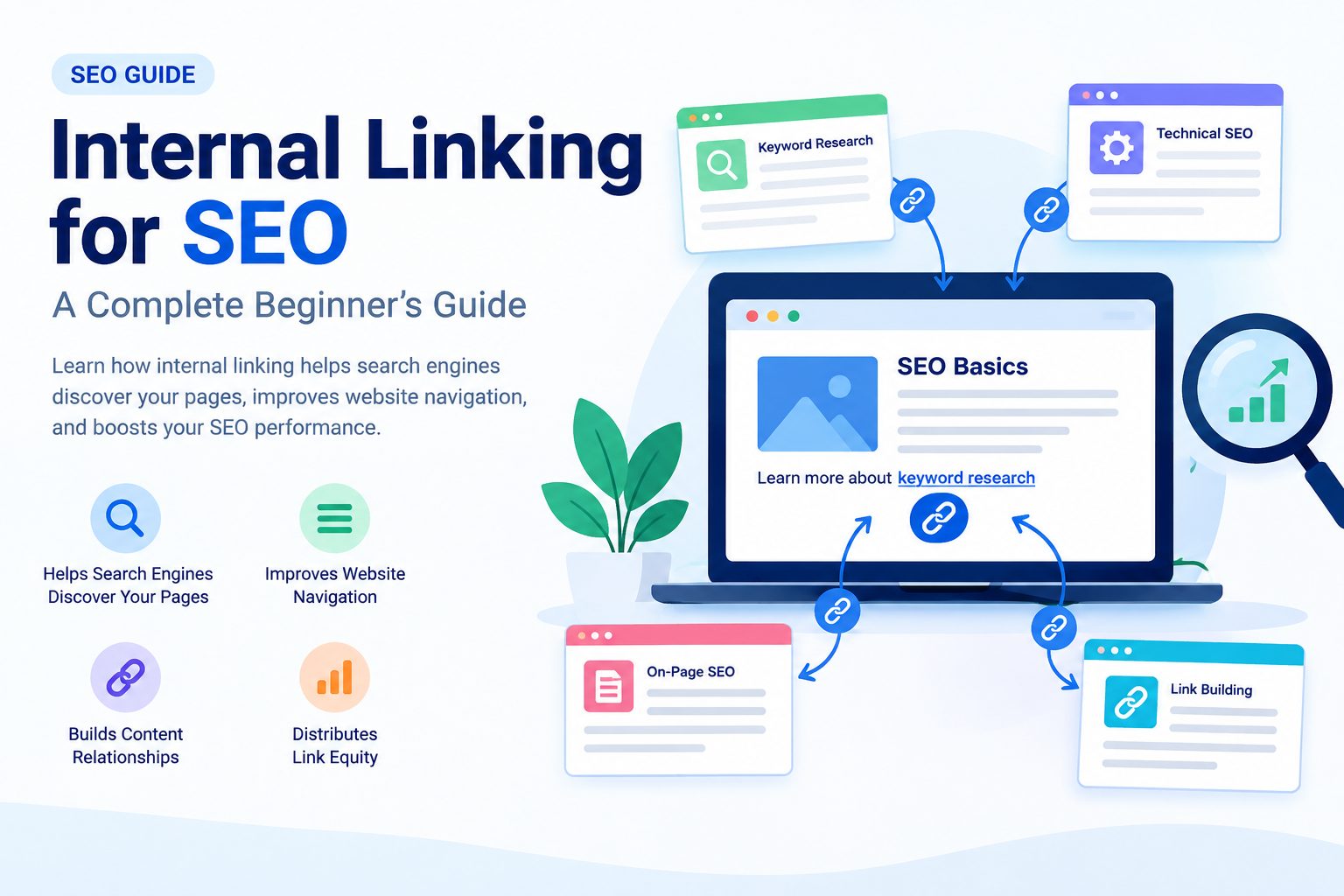
    Internal Linking for SEO: A Complete Beginner’s Guide

    Internal linking for SEO is an important part of on-page optimization that helps search engines understand your website’s structure and allows visitors to navigate between related pages. By adding relevant links to your blog content, you can connect different webpages, guide users toward useful information, and make your website easier to explore.

    If you are a beginner learning SEO, understanding internal linking can help you build a well-organized website and improve your overall content strategy. In this blog, we will explain what internal linking is, why it matters, its benefits, best practices, and how to add internal links to your website.

    What Is Internal Linking?

    Internal linking is the process of adding a hyperlink from one page of your website to another page on the same website. These links help visitors move between related content without needing to return to the homepage or search for another article.

    For example, if you have a blog about keyword research, you can link to another article about on-page SEO when discussing how keywords are used in content optimization.

    Example:

    “After finding the right keywords, learn more about [On-Page SEO: A Beginner’s Guide].”

    Here, the link connects two related pages on your website. This creates a better navigation experience and helps search engines discover the connected content.

    Why Is Internal Linking Important for SEO?

    Internal linking for SEO provides several benefits for both website visitors and search engines. Let’s understand the main reasons why internal links should be part of your SEO strategy.

    1. Helps Search Engines Discover Your Pages

    Search engines use links to discover and navigate webpages. Internal links can help search engine crawlers find pages that may not be easily accessible through other navigation paths.

    For example, if you publish a new blog about technical SEO and link to it from an existing, relevant article, the internal link provides another way for crawlers to reach that page.

    However, internal links do not guarantee that Google will crawl or index every linked page. Your website’s overall structure and other technical factors also matter.

    2. Improves Website Navigation

    Internal links make it easier for visitors to find related information on your website. Instead of searching for another article manually, users can click a relevant link within your content.

    For example, if your blog explains SEO basics, you can link to articles about:

    • Keyword research
    • On-page SEO
    • Technical SEO
    • Off-page SEO
    • Backlink building

    This helps readers explore additional topics and understand your content more easily.

    3. Helps Search Engines Understand Content Relationships

    Internal linking helps communicate how different pages on your website are connected. When related articles link to each other using descriptive anchor text, search engines can gain additional context about the linked page.

    For example, consider this sentence:

    “Learn more about how to get backlinks to understand off-page SEO.”

    The linked phrase gives users and search engines useful context about the destination page.

    Internal links are one of many signals search engines use to understand website content and relevance.

    4. Distributes Link Equity

    Internal links can help distribute link equity, sometimes referred to as link authority, throughout your website.

    When one page receives external backlinks, some of the value associated with those links may be passed through internal links to other pages. The amount of value transferred depends on various factors, and internal links do not guarantee improved rankings.

    A well-planned internal linking structure can help important pages become more connected within your website.

    Types of Internal Links

    There are several types of internal links you can use when optimizing your website.

    1. Navigational Internal Links

    Navigational links are commonly found in your website’s main menu, header, or navigation section. They help users access important pages such as:

    • Home
    • About Us
    • Services
    • Blog
    • Contact

    These links improve website navigation and allow visitors to find important sections quickly.

    2. Contextual Internal Links

    Contextual internal links are placed within the main content of a webpage. They connect users to related articles, guides, or resources.

    For example, while writing about SEO tools, you can link to a blog explaining keyword research tools.

    Contextual links are particularly useful because they appear naturally within relevant content and can direct readers toward additional information.

    3. Footer and Sidebar Links

    Footer and sidebar links can connect visitors to important pages or related content. They may include links to categories, popular articles, or essential website pages.

    Use these links thoughtfully and avoid adding excessive links that make the page difficult to navigate.

    How to Create an Effective Internal Linking Strategy

    A proper internal linking strategy helps you organize your website and connect related content. Follow these steps to get started.

    1. Identify Related Content

    Start by reviewing your existing blog posts and identifying articles that discuss similar or connected topics.

    For example, if your website focuses on SEO, you might have these articles:

    • What Is SEO?
    • Keyword Research for Beginners
    • On-Page SEO Guide
    • How to Get Backlinks
    • Technical SEO

    You can connect these articles where the links provide additional value to the reader.

    2. Use Descriptive Anchor Text

    Anchor text is the clickable text used in a hyperlink. It should clearly describe the content of the linked page.

    Good example:

    Learn more about keyword research for beginners.

    Less descriptive example:

    Click here to learn more.

    Descriptive anchor text helps users understand where a link will take them. Use natural variations when appropriate, rather than repeating the same keyword in every link.

    3. Link to Important Pages

    Consider linking to pages that are important for your website’s goals, such as detailed guides, service pages, or cornerstone content.

    For example, if you have a comprehensive guide about SEO, you can link to it from several related blog posts where it provides useful additional information.

    This can improve content discovery and help users navigate your website.

    4. Avoid Excessive Internal Links

    Internal links are useful, but adding too many links can make your content confusing and reduce readability.

    There is no fixed ideal number of internal links for every webpage. Instead, add links when they are relevant and helpful.

    Before adding a link, ask yourself:

    • Is this link relevant to the current topic?
    • Will it help the reader?
    • Does it lead to a working webpage?
    • Does the anchor text accurately describe the destination?

    If the answer is yes, the link may be a useful addition.

    Common Internal Linking Mistakes to Avoid

    Broken Internal Links

    A broken link leads to a missing or unavailable page. Regularly check your website for broken links and update or remove them when necessary.

    Irrelevant Links

    Avoid linking to unrelated pages simply to increase the number of internal links. Every link should serve a clear purpose.

    Using the Same Anchor Text Repeatedly

    Using identical anchor text for different destination pages can create confusion. Make sure your anchor text accurately represents the page you are linking to.

    Orphan Pages

    An orphan page is a webpage that has no internal links pointing to it from other pages on your website. These pages can be harder for users and search engines to discover, depending on the website’s other discovery methods.

    Review your website structure and add relevant internal links to important pages.

    How to Add Internal Links in WordPress

    If you use WordPress, adding an internal link is simple.

    1. Open your WordPress dashboard.
    2. Go to Posts and open the blog you want to edit.
    3. Select the text where you want to add a link.
    4. Click the link icon in the editor.
    5. Search for an existing blog or paste its URL.
    6. Apply the link and update your post.

    Always check that the link opens the correct webpage.

    How to Check Internal Links

    You can review your internal linking strategy using SEO tools such as Google Search Console, Semrush, or other website auditing tools. These tools may help you identify issues such as broken links, crawlability problems, and pages with limited internal links.

    For a beginner, start by manually reviewing your published blogs and creating connections between related topics.

    Conclusion

    Internal linking for SEO is an essential practice for building a well-structured website. It helps users discover related content, supports website navigation, and provides search engines with additional information about the relationships between your webpages.

    To improve your internal linking strategy, use descriptive anchor text, connect relevant articles, check for broken links, and avoid unnecessary linking. As you publish more blogs, regularly review your website structure and add internal links where they provide genuine value.

    A strong internal linking strategy, combined with quality content, keyword research, technical SEO, and other optimization techniques, can support your website’s long-term growth.

  • LinkedIn: How to Build Your Career

    LinkedIn: How to Build Your Career

    In today’s digital world, building a successful career is not only about having a good degree or qualification. It is also about creating a strong professional identity, connecting with the right people, learning new skills, and finding better career opportunities. LinkedIn is one of the most useful platforms for achieving these goals.

    LinkedIn is a professional networking platform where students, job seekers, employees, freelancers, entrepreneurs, recruiters, and companies can connect with each other. By using LinkedIn correctly, you can showcase your skills, build your professional network, discover jobs, and develop your career.

    What Is LinkedIn?

    LinkedIn is a professional social networking platform designed mainly for career and business purposes. Unlike entertainment-focused social media platforms, LinkedIn focuses on professional networking, employment, business communication, learning, and industry knowledge.

    You can create a professional profile that works like an online resume. Your profile can include your education, work experience, skills, certifications, projects, achievements, and professional interests.

    A well-created LinkedIn profile can help recruiters and companies understand your professional background and contact you for suitable opportunities.

    Why Is LinkedIn Important for Career Building?

    LinkedIn can be useful at almost every stage of your career. Whether you are a student looking for your first internship, a fresher searching for a job, or an experienced professional planning your next career move, LinkedIn provides several useful opportunities.

    Some important benefits include:

    • Building a professional identity
    • Finding job and internship opportunities
    • Connecting with industry professionals
    • Showcasing skills and achievements
    • Learning about different industries
    • Following companies and professionals
    • Building a professional network
    • Sharing knowledge and professional content
    • Connecting with recruiters
    • Discovering career-related trends

    1. Create a Professional LinkedIn Profile

    The first step to building your career on LinkedIn is creating a strong profile. Your LinkedIn profile should clearly explain who you are, what you do, and what type of career you are interested in.

    Add a professional profile photo and write a clear headline. Instead of simply writing “Student” or “Job Seeker,” mention your field and important skills.

    For example:

    Digital Marketing Student | SEO | Social Media Marketing | Content Creation

    Your headline should quickly communicate your professional interests.

    2. Write a Strong About Section

    The About section gives you an opportunity to introduce yourself in more detail. You can explain your education, skills, interests, experience, achievements, and career goals.

    Keep your About section simple and professional. Avoid adding unnecessary personal information. If you are a beginner, focus on your learning journey, skills, projects, and career interests.

    For example, a digital marketing beginner can mention their interest in SEO, social media marketing, content marketing, Google tools, and analytics.

    3. Add Your Education and Experience

    Your education and work experience are important parts of your LinkedIn profile.

    Add details such as:

    • School or college name
    • Degree or course
    • Field of study
    • Certifications
    • Work experience
    • Internship experience
    • Freelance projects
    • Volunteer work

    If you do not have professional work experience, you can add academic projects, personal projects, internships, or relevant training.

    This helps recruiters understand what you have learned and what you can do.

    4. Highlight Your Skills

    Skills are an important part of your LinkedIn profile. Add skills that are relevant to your career goals.

    For example, a digital marketing professional may include:

    • Search Engine Optimization
    • Social Media Marketing
    • Content Marketing
    • Google Analytics
    • Keyword Research
    • Canva
    • Email Marketing
    • Search Engine Marketing

    Do not add random skills just to make your profile look longer. Focus on skills that you actually understand or are currently learning.

    5. Build Your Professional Network

    Networking is one of the biggest advantages of LinkedIn. You can connect with people working in your industry, recruiters, business owners, teachers, professionals, and other learners.

    Start by connecting with people who have similar professional interests. When sending a connection request, a short and polite message can make your interaction more professional.

    For example:

    “Hello, I am interested in digital marketing and would like to connect with you and learn from your professional experience.”

    Remember that networking is not simply about collecting connections. The goal is to create meaningful professional relationships.

    6. Follow Companies and Industry Professionals

    LinkedIn allows you to follow companies, professionals, creators, and organizations. This can help you stay updated about industry news, job openings, new skills, and professional trends.

    If you are interested in digital marketing, for example, follow digital marketing companies, SEO professionals, advertising experts, and marketing agencies.

    Regularly reading their posts can help you understand what is happening in your industry.

    7. Share Valuable Content

    Building your career on LinkedIn is not only about creating a profile. You should also become active on the platform.

    You can share:

    • Industry tips
    • Learning experiences
    • Project updates
    • Professional achievements
    • Useful resources
    • Career lessons
    • Educational posts
    • Industry trends

    For example, if you recently learned about SEO, you could create a simple post explaining what SEO is and why it is important.

    Regular and useful content can help you become more visible within your professional network.

    8. Use LinkedIn to Find Jobs

    LinkedIn is also a useful platform for job searching. You can search for jobs according to your preferred role, location, experience level, and other requirements.

    You can search for positions such as:

    • Digital Marketing Executive
    • SEO Executive
    • Social Media Executive
    • Content Writer
    • Graphic Designer
    • Marketing Intern
    • Business Development Executive

    Before applying, read the job description carefully and check whether your skills and experience match the requirements.

    Keep your resume updated and make sure your LinkedIn profile provides information that is consistent with your resume.

    9. Connect With Recruiters

    Recruiters often use LinkedIn to discover potential candidates. A complete and professional profile can make it easier for recruiters to understand your background.

    If you are looking for a job, you can connect with recruiters working in your target industry. However, avoid sending repeated promotional messages or asking for a job immediately.

    Instead, communicate professionally and focus on building a genuine connection.

    10. Keep Learning New Skills

    Career development is a continuous process. Industries change quickly, and professionals need to keep improving their skills.

    LinkedIn can help you discover courses, educational content, professional discussions, and new industry trends.

    For example, if you want to build a career in digital marketing, you can continue learning about SEO, social media marketing, paid advertising, analytics, content creation, and artificial intelligence.

    Learning new skills can improve your knowledge and help you become more prepared for future opportunities.

    11. Build Your Personal Brand

    Your LinkedIn profile can become part of your personal brand. Personal branding means creating a professional identity that clearly communicates your skills, knowledge, interests, and expertise.

    To build your personal brand:

    • Keep your profile updated
    • Share useful content
    • Discuss your learning experiences
    • Showcase your projects
    • Maintain professional communication
    • Engage with relevant industry posts
    • Stay consistent in your professional interests

    You do not need to become an influencer to build a personal brand. Simply sharing useful and authentic professional content can help.

    12. Stay Active and Consistent

    One of the most common mistakes people make is creating a LinkedIn profile and then becoming inactive.

    Career building takes time. Try to use LinkedIn regularly. Read professional posts, connect with relevant people, learn new information, and share useful content when appropriate.

    Consistency is more important than posting every day.

    Common Mistakes to Avoid on LinkedIn

    While using LinkedIn, avoid these common mistakes:

    • Using an unprofessional profile picture
    • Leaving your profile incomplete
    • Adding false information
    • Sending spam messages
    • Copying other people’s content
    • Using too many irrelevant hashtags
    • Applying for jobs without reading requirements
    • Adding skills you do not actually know
    • Ignoring messages from professional contacts
    • Being inactive for long periods

    Your LinkedIn profile represents your professional identity, so keep it accurate, respectful, and updated.

    Conclusion

    LinkedIn: How to Build Your Career is an important topic for students, freshers, job seekers, freelancers, and working professionals. LinkedIn can help you create a professional identity, build meaningful connections, showcase your skills, discover job opportunities, and stay informed about your industry.

    To get the most from LinkedIn, start with a complete and professional profile. Add your education, experience, skills, projects, and certifications. Build your network gradually, follow relevant professionals and companies, share useful content, and continue learning new skills.

    Remember that LinkedIn is not only a job-searching website. It is a professional platform where you can learn, connect, communicate, and develop your career over time.

    With consistent effort and a professional approach, LinkedIn can become an important part of your long-term career-building strategy.

  • YouTube Studio: How to Manage Your Channel

    YouTube Studio: How to Manage Your Channel

    YouTube has become one of the most popular platforms for sharing videos, learning new skills, building an audience, and creating online businesses. However, simply uploading videos is not enough to successfully manage a YouTube channel. Creators need a proper tool to upload content, understand their audience, check performance, manage comments, and improve their channel. This is where YouTube Studio becomes useful.

    YouTube Studio is the main management platform provided by YouTube for creators. It gives you access to important tools and information in one place. Whether you are a beginner, student, content creator, influencer, or business owner, YouTube Studio can help you manage your channel more effectively.

    YouTube Studio

    What Is YouTube Studio?

    YouTube Studio is a creator dashboard that allows you to manage your YouTube channel and content. It provides tools for uploading and editing videos, checking analytics, responding to comments, managing playlists, customizing your channel, and monitoring monetization.

    You can access YouTube Studio through a web browser on a computer or through the YouTube Studio mobile app. After signing in with your Google account, you can see your channel dashboard and different management options.

    YouTube Studio Dashboard

    The Dashboard is the first section you normally see when you open YouTube Studio. It provides an overview of your channel and recent activities.

    The dashboard can show information such as recent video performance, channel analytics, comments, subscriber updates, and important notifications. It gives creators a quick idea of what is happening on their channel.

    Checking the dashboard regularly can help you stay updated about your content and audience.

    Managing Your Videos

    The Content section is one of the most important parts of YouTube Studio. Here, you can manage your uploaded videos, Shorts, and live streams.

    You can upload a new video and add important information such as:

    • Video title
    • Description
    • Thumbnail
    • Playlist
    • Audience settings
    • Tags and other available details
    • Visibility settings

    You can also edit existing videos whenever necessary. For example, if you find a spelling mistake in the title or want to update the description, you can make changes through YouTube Studio.

    You can also choose whether a video should be Public, Private, or Unlisted, depending on your purpose.

    Creating Effective Video Titles

    A good title helps viewers understand what your video is about. It should be clear, relevant, and interesting without being misleading.

    For example, instead of using a simple title such as “YouTube Studio,” you could use a more descriptive title like “YouTube Studio: How to Manage Your Channel.”

    Including relevant keywords in your title can also help YouTube and viewers understand the topic of your video.

    Writing Video Descriptions

    The video description provides additional information about your content. You can explain what viewers will learn, add important links, mention resources, and provide additional details.

    A useful description should be clear and related to the video. Avoid adding unnecessary information or unrelated keywords.

    For example, a tutorial about YouTube Studio can include a short explanation of the features covered in the video.

    Managing Thumbnails

    A thumbnail is the image viewers see before clicking on a video. An attractive and relevant thumbnail can make your video easier to recognize.

    YouTube Studio allows eligible creators to add or change video thumbnails. A good thumbnail should be simple, readable, and connected to the video’s topic.

    Using clear text and an understandable image can help communicate the video’s subject quickly.

    Understanding YouTube Analytics

    The Analytics section is another important feature of YouTube Studio. It provides information about how your channel and videos are performing.

    You can view different types of information, including:

    • Views
    • Watch time
    • Subscribers
    • Audience engagement
    • Reach
    • Traffic sources
    • Audience information

    Analytics can help you understand which videos are getting attention and how viewers are interacting with your content.

    For example, if one topic consistently receives more views than another topic, you can use this information when planning future content.

    Understanding Audience Engagement

    Audience engagement is important for building a YouTube community. Likes, comments, shares, and other interactions can provide useful feedback.

    YouTube Studio helps creators monitor these interactions. By studying audience responses, creators can understand what viewers like, what questions they have, and what topics they may want to see in future videos.

    However, analytics should be viewed over time rather than judging a channel based on only one video’s performance.

    Managing Comments

    The Comments section allows creators to view and manage comments on their videos.

    You can read comments, reply to viewers, and manage unwanted or inappropriate comments. Responding politely to useful comments can help create a stronger relationship with your audience.

    If viewers ask questions about your content, answering those questions can also make your channel more helpful and engaging.

    Creating and Managing Playlists

    Playlists allow you to organize related videos into groups. For example, a digital marketing channel could create playlists such as:

    • SEO Tutorials
    • Social Media Marketing
    • YouTube Tutorials
    • Canva Tutorials
    • Digital Marketing Basics

    Playlists make it easier for viewers to find related videos and watch multiple pieces of content on the same topic.

    Channel Customization

    YouTube Studio also provides tools for customizing your channel. You can manage elements such as your channel layout, branding, profile picture, banner, and other available channel information.

    A professional and consistent channel design can help visitors understand what your channel is about.

    Your channel description should clearly explain your content and the type of information viewers can expect.

    Managing Shorts and Live Streams

    YouTube Studio is not limited to traditional videos. Creators can also manage YouTube Shorts and live-stream content.

    Shorts are vertical videos designed for quick viewing. Creators can use Studio to monitor their performance and manage uploaded Shorts.

    Live streams allow creators to interact with viewers in real time. YouTube Studio provides tools and information for managing live content and reviewing its performance.

    Monetization and YouTube Studio

    For eligible creators, the Earn section provides information about YouTube monetization features. Depending on eligibility and available programs, creators may be able to earn money from their content.

    YouTube Studio can show information related to monetization, revenue, and eligibility. Monetization requirements and available features can change, so creators should always check the current information provided by YouTube.

    Managing Channel Settings

    The Settings section allows you to manage important channel options. Depending on your account and channel type, you may find settings related to uploads, permissions, defaults, notifications, and other features.

    Reviewing your settings regularly can help ensure that your channel is configured according to your needs.

    Benefits of YouTube Studio

    YouTube Studio provides several benefits to creators. It brings many channel-management tools together in one platform. Instead of using different tools for different tasks, creators can manage much of their YouTube activity through Studio.

    Some major benefits include:

    1. Easy video management
    2. Detailed performance analytics
    3. Comment management
    4. Playlist organization
    5. Channel customization
    6. Content performance tracking
    7. Monetization information for eligible creators
    8. Audience insights
    9. Management of Shorts and live content
    10. Better understanding of channel growth

    Tips for Using YouTube Studio Effectively

    To manage your channel effectively, check YouTube Studio regularly. Review your analytics to understand your content performance, but do not focus only on views.

    Create clear titles and descriptions, use relevant thumbnails, organize videos into playlists, and respond to useful viewer comments.

    You should also maintain a consistent upload schedule that you can realistically follow. Most importantly, create useful and original content that provides value to your audience.

    Conclusion

    YouTube Studio is an important platform for anyone who wants to manage a YouTube channel professionally. It provides tools for uploading videos, editing content, checking analytics, managing comments, organizing playlists, customizing your channel, and monitoring available monetization features.

    For beginners, YouTube Studio may seem complex at first, but its different sections become easier to understand with regular use. By using its tools properly and studying your channel analytics, you can make better content decisions and build a more organized YouTube channel.

    Overall, YouTube Studio is more than just a place to upload videos. It is a complete management dashboard that helps creators understand their content, audience, and channel performance in one place.

  • LinkedIn: Jobs, Networking & Career Opportunities

    LinkedIn is a professional social networking platform that helps people connect with professionals, find job opportunities, build their careers, and showcase their skills. Users can create a professional profile, share their achievements, follow companies, search for jobs, and connect with people from different industries. LinkedIn is also useful for businesses and recruiters to find talented professionals and promote their organizations. Whether you are a student, job seeker, freelancer, employee, or business owner, LinkedIn can help you build a strong professional network and discover new career opportunities.

    linkedin

    2. Main Purpose of LinkedIn

    The main purpose of LinkedIn is to create professional connections and discover career opportunities. Users can:

    • Search and apply for jobs
    • Build a professional network
    • Showcase their skills and experience
    • Connect with recruiters and professionals
    • Follow companies and industries
    • Share professional content and achievements
    • Learn about career and industry trends

    3. Profile

    Your LinkedIn profile works like an online professional resume. You can add:

    • Profile photo
    • Professional headline
    • About section
    • Education
    • Work experience
    • Skills
    • Certifications
    • Projects
    • Achievements

    A complete and updated profile makes it easier for other professionals and recruiters to understand your background.

    4. Jobs and Career Opportunities

    LinkedIn has a dedicated Jobs section where users can search for employment opportunities. Jobs can be filtered by:

    • Location
    • Job title
    • Experience level
    • Employment type
    • Industry
    • Remote or on-site work

    Some jobs allow users to apply directly through LinkedIn, while others redirect applicants to the company’s application page.

    5. Professional Networking

    Networking is one of LinkedIn’s important features. Users can connect with:

    • Industry professionals
    • Colleagues
    • Recruiters
    • Business owners
    • Employers
    • Classmates
    • Potential clients

    Building relevant professional connections can help users learn about their industry and discover career-related opportunities.

    6. Posts

    Users can publish professional content such as:

    • Career tips
    • Industry knowledge
    • Project updates
    • Work achievements
    • Educational content
    • Professional experiences
    • Company updates

    Sharing useful and relevant content can help users develop their professional presence.

    7. Skills

    Users can add relevant skills to their profiles, such as:

    • Digital Marketing
    • SEO
    • Social Media Marketing
    • Graphic Design
    • Content Writing
    • Communication
    • Data Analysis

    Skills help visitors and recruiters understand a user’s professional abilities.

    8. LinkedIn for Recruiters

    Recruiters use LinkedIn to discover potential candidates, review professional profiles, and connect with people whose skills and experience match job requirements. Therefore, keeping your profile accurate and updated can be useful when looking for employment.

    9. Benefits of :

    Professional Networking: Connect with people from different industries.

    Job Search: Discover job openings and career opportunities.

    Personal Branding: Showcase your skills, experience, projects, and achievements.

    Career Development: Learn from professionals and follow industry-related content.

    Recruiter Connections: Make your professional profile visible to recruiters.

    Business Networking: Companies and business owners can connect with professionals, clients, and other businesses.

    10. Who Can Use LinkedIn?

    Students: For internships, networking, and career exploration.

    Job Seekers: For finding jobs and connecting with recruiters.

    Professionals: For networking, career development, and professional branding.

    Freelancers: For showcasing services and connecting with potential clients.

    Businesses: For hiring, networking, branding, and sharing company updates.

    Career Opportunities on LinkedIn

    LinkedIn provides many career opportunities for students, job seekers, professionals, freelancers, and business owners. Users can search for jobs according to their skills, experience, location, education, and interests.

    Key career opportunities include:

    • Job Search: Find full-time, part-time, remote, and freelance jobs.
    • Internships: Students can discover internship opportunities to gain practical experience.
    • Networking: Connect with professionals, recruiters, and industry experts.
    • Recruiter Connections: Recruiters can find candidates through their professional profiles.
    • Skill Development: Learn new skills through professional content and learning resources.
    • Freelancing: Showcase your skills and connect with potential clients.
    • Career Growth: Discover opportunities for promotions, new roles, and professional development.
    • Personal Branding: Build your professional identity by sharing your knowledge, projects, and achievements.

    LinkedIn Networking – Detailed Explanation

    Networking on LinkedIn means building and maintaining professional relationships with people in your industry or career field. It helps you connect with professionals, recruiters, companies, clients, and industry experts.

    1. Connect with Professionals

    You can send connection requests to people who work in your field, such as colleagues, managers, recruiters, business owners, and industry experts.

    2. Build a Professional Network

    As you connect with more relevant people, you create a professional network. This network can help you discover industry information, job openings, projects, and professional discussions.

    3. Connect with Recruiters

    LinkedIn allows job seekers to connect with recruiters and hiring professionals. A well-maintained profile can make it easier for recruiters to understand your skills and experience.

    4. Follow Companies

    You can follow companies to receive updates about their products, activities, job openings, and other professional information.

    5. Engage with Content

    Networking is not only about sending connection requests. You can also:

    • Like useful posts
    • Comment professionally
    • Share relevant content
    • Participate in discussions
    • Congratulate people on their achievements

    Regular, meaningful engagement can help you become more visible within your professional network.

    6. Share Your Knowledge

    You can publish posts about your skills, projects, achievements, industry knowledge, or learning experiences. This helps communicate your professional interests to your network.

    7. Join Professional Communities

    LinkedIn can help you discover people and discussions related to specific industries, skills, and professional interests. Participating in relevant communities can expand your network.

    8. Networking Benefits

    • Helps build professional relationships
    • Can expose you to career opportunities
    • Helps you learn from experienced professionals
    • Makes it easier to discover industry trends
    • Can help develop your professional reputation
    • Provides opportunities to exchange knowledge and ideas

    Conclusion

    LinkedIn is a powerful professional networking platform that helps users find jobs, build professional connections, showcase their skills, and explore career opportunities. By creating a strong profile, connecting with relevant professionals, sharing useful content, and engaging with industry experts, users can improve their professional presence. Whether you are a student, job seeker, freelancer, or experienced professional, LinkedIn can help you build valuable connections and discover new opportunities for career growth.

  • Twitter App Download: Latest Version & Features

    Twitter

    Twitter, now known as X, is a popular social media platform where users can share posts, news, photos, videos, and opinions. The Twitter app allows users to connect with people, follow their favorite accounts, discover trending topics, and stay updated with the latest information. You can download the official X app on Android and iOS devices and easily create or log in to your account. In this guide, we will explain how to download and install the Twitter app safely and explore its main features.

    twitter app

    Twitter/X App Latest Version – Detailed Explanation

    Twitter, now officially called X, is a social media application used to share and discover real-time information. The latest version focuses on faster content discovery, communication, video, communities, and AI-based features.

    1. Updated User Interface

    The latest X app provides an improved interface that makes it easier to move between posts, notifications, messages, and other sections.

    2. Home Feed

    The Home section shows posts from accounts you follow. You can:

    • Like posts
    • Repost content
    • Reply to posts
    • Share posts
    • Bookmark useful content

    The Explore section helps users discover:

    • Trending topics
    • Latest news
    • Popular posts
    • Videos
    • Different categories of content

    4. Video Features

    X allows users to watch and share videos. Depending on account and feature availability, users can also access longer-form video content.

    5. Direct Messages

    The DM feature allows users to communicate privately with other X users through direct messages.

    6. Communities

    Communities allow people with similar interests to participate in topic-focused conversations and share posts with other members.

    7. Grok AI

    Twitter app also integrates Grok, an AI assistant that can help users understand information, answer questions, and provide context about topics and posts.

    8. Notifications

    Notifications keep users updated about:

    • New followers
    • Likes and replies
    • Reposts
    • Mentions
    • Direct messages

    9. Premium Features

    Some advanced features are available through X Premium. Depending on the plan and region, these can include features such as post editing, longer posts/videos, and other additional capabilities.

    10. Security & Updates

    For the safest experience, download and update the app through the official Google Play Store or Apple App Store rather than using modified or unknown APK files.

    Twitter/X App – Key Features in Detail

    https://images.openai.com/static-rsc-4/LgFtnCkQGmGjd2sn4MhyGGE06qIeG8wPiEO7fgm2GrMDoSbaTmcIDJp152QGxm3AD78_fnIVu_FZ2g5geS5ZO9KNhuxQ4WcDXJkktyrDG0gdd4qUhO-7lM5c9zjZWcARcG82YDmvmDVxfrQkD9B0v2t_XhXEqVV0wfx5foGI7hNwDYRv6cZRyTrF7AB2zs_i?purpose=fullsize
    https://images.openai.com/static-rsc-4/kUfBKE2x5MT23SrXfLlQEf5M3X1d6uogfm_qpsG_QUiVXXWmiRHkDlEy7jZjbVrAHz_yjT-LEeNnExT9ABV4NQ-Lyj1_nOHdzmg-2zM9LksLUrRxSrxHPLY1LnAlehCRRatUK09Fcgoq1Bq5jhVlu0EcIxth0pChIJHVG2VEpsKgUEI3iuJzJTcwGOoIR2xM?purpose=fullsize
    https://images.openai.com/static-rsc-4/1XXC_92QuOz6hZ9HITgRCiai1HE0Zy89yr6EE-c4BEy0Db5VV00OaSbRc1B3IrMdYqSEJQVjDPSVXjLvNh8LobNheK4vqJmr-zQXYIG0v_HC55xQsEg8Pn3aW-MDi1u8w4MB2aRL3ALmgjFChe4BVZL6m8YPfOJLFHXtxDg2FmNVFtxDZklWsMSrslfZIaEB?purpose=fullsize

    5

    Twitter, now known as X, offers several features for communication, content sharing, news, entertainment, and networking.

    1. Home Feed

    The Home Feed displays posts from accounts you follow and recommended content. You can like, repost, reply to, bookmark, and share posts.

    2. Explore

    The Explore section helps you discover trending topics, popular posts, news, videos, and other content based on current activity.

    3. Posts

    Users can create posts to share text, images, videos, GIFs, polls, and links. Other users can interact with these posts through likes, replies, and reposts.

    4. Hashtags

    Hashtags such as #DigitalMarketing help organize content around a particular topic. Clicking a hashtag can show other related posts.

    5. Direct Messages (DMs)

    DMs allow users to communicate privately with other users. They can be used for personal conversations and sharing content.

    6. Notifications

    The notification section shows activities related to your account, such as likes, replies, reposts, follows, and mentions.

    7. Spaces

    X Spaces allows users to participate in live audio conversations. People can listen to discussions and, when permitted, participate as speakers.

    8. Communities

    Communities are topic-based spaces where people with shared interests can interact and discuss specific subjects.

    9. Video

    Twitter app provides video content for entertainment, information, and live events. Users can also upload and share videos.

    10. Grok AI

    Grok is X’s integrated AI assistant. It can answer questions and help users understand or explore information available through the platform.

    11. Bookmarks

    The Bookmark feature lets you save posts privately so you can find and read them later.

    12. Following & Followers

    You can follow accounts to see their content in your feed. People who follow your account become your followers.

    The search feature helps you find people, posts, hashtags, topics, and other content on twitter app.

    14. Premium Features

    X Premium provides additional features to subscribers. Available features can vary by subscription plan and country, and may include post editing, longer posts, and other enhanced features.

    15. Privacy & Safety Controls

    X provides controls for managing your account, including options related to privacy, blocked accounts, muted accounts, and sensitive content.

    Conclusion

    Twitter app, now known as X, is a useful social media platform for sharing information, connecting with people, following trends, and discovering real-time content. Its features such as posts, Explore, hashtags, Direct Messages, Spaces, Communities, video, and Grok AI make it useful for communication, entertainment, networking, and staying updated with current topics. For a safe experience, users should download the official X app from trusted app stores and keep it updated.

  • YouTube for Beginners: Features, Benefits & Uses

    YouTube for Beginners: Features, Benefits & Uses

    YouTube Introduction

    YouTube is a popular video-sharing platform where users can watch, upload, share, and discover videos. It offers content on education, entertainment, music, news, tutorials, gaming, and many other topics.For digital marketing, is useful for brand promotion, audience engagement, product awareness, and video marketing. Businesses and creators can build their audience through regular and valuable video content.

    YouTube

    YouTube Features –

    YouTube is a video-sharing platform where users can watch, upload, create, share, and interact with videos.

    1. Home Page

    The Home Page shows recommended videos based on your interests, watch history, subscriptions, and activity.

    The Search feature helps users find videos, channels, playlists, music, tutorials, news, and other content using keywords.

    3. YouTube Shorts

    Shorts are short-form vertical videos designed for quick viewing. Users can watch, create, like, comment on, and share Shorts.

    4. Subscriptions

    Users can subscribe to channels they like. New videos from subscribed channels can appear in the Subscriptions feed.

    5. Like & Dislike

    Users can interact with videos using Like and, where available, Dislike. These interactions help express feedback about content.

    6. Comments

    The Comment section allows viewers to share opinions, ask questions, and interact with creators and other viewers.

    7. Share

    The Share feature lets users share videos through social media, messaging apps, or by copying the video link.

    8. Playlists

    A Playlist is a collection of videos organized around a topic. It helps users save and watch related videos together.

    9. Watch Later

    Watch Later allows users to save videos and watch them at another time.

    10. YouTube Live

    Live streaming allows creators to broadcast events, classes, gaming, discussions, and other content in real time.

    11. YouTube Studio

    YouTube Studio is the creator management area. Creators can upload videos, edit details, manage comments, view analytics, and monitor channel performance.

    12. YouTube Analytics

    Analytics provides information such as views, watch time, audience information, engagement, and traffic sources, helping creators understand their channel performance.

    13. Notifications

    Users can receive notifications about new uploads, live streams, premieres, and other activity from channels they follow.

    14. YouTube Music

    YouTube also provides a dedicated music experience where users can discover and listen to songs, albums, artists, playlists, and music videos.

    15. Captions & Subtitles

    Videos can provide captions/subtitles, making content easier to understand and more accessible.

    16. Download / Offline Viewing

    Depending on the video, location, and YouTube plan, users may be able to download videos for offline viewing within the YouTube app.

    17. Monetization

    Eligible creators can earn money through features such as advertising, memberships, Super Chat, Super Thanks, Shopping, and other YouTube Partner Program features, subject to YouTube’s eligibility requirements.

    18. YouTube Premium

    YouTube Premium is a paid membership that provides benefits such as ad-free viewing, background play, and offline downloads, with availability depending on the region.

    19. Channel

    A YouTube Channel is a creator’s public space where their videos, Shorts, playlists, and other content are displayed.

    20. Community Features

    Eligible channels can use community-related features to post updates, polls, images, and other content to interact with their audience.

    YouTube for Digital Marketing

    For digital marketing, YouTube can be used for:

    • Brand awareness
    • Product promotion
    • Educational content
    • Video advertising
    • Influencer marketing
    • Customer engagement
    • Website traffic
    • Lead generation
    • Building a loyal audience
    • Increasing brand visibility

    In simple words: YouTube is not only a video-watching platform; it is also a powerful content creation, marketing, communication, and business platform.

    Benefits of YouTube

    YouTube offers many benefits for both users and businesses. Here are the main benefits in simple English:

    1. Easy Access to Information

    YouTube provides tutorials, educational videos, news, reviews, and how-to guides on many topics.

    2. Learning & Education

    Students can learn new skills such as digital marketing, SEO, computer skills, cooking, design, and languages through video lessons.

    3. Entertainment

    Users can watch movies, music videos, comedy, web content, Shorts, gaming, and live streams for entertainment.

    4. Business Promotion

    Businesses can use YouTube to promote their products and services and reach potential customers.

    5. Brand Awareness

    Regular video content helps businesses introduce their brand, products, services, and values to a wider audience.

    6. Global Reach

    YouTube allows creators and businesses to reach audiences locally and internationally.

    7. Audience Engagement

    Features such as comments, likes, shares, live streams, and community posts help creators communicate with their audience.

    8. Monetization

    Eligible creators can earn money through advertisements, channel memberships, Super Thanks, Super Chat, Shopping, and other monetization features.

    9. Cost-Effective Marketing

    Creating and publishing videos can be a cost-effective way to promote a business compared with some traditional advertising methods.

    10. Website Traffic

    Businesses can add website links to their YouTube content and encourage viewers to visit their websites.

    11. Builds Trust

    Helpful and informative videos can demonstrate a creator’s or company’s knowledge and expertise, which can help build audience trust.

    12. SEO Benefits

    Well-optimized YouTube videos can appear in YouTube and Google search results, helping people discover your content.

    13. Personal Branding

    Individuals can use YouTube to build a personal brand by regularly sharing their knowledge, skills, opinions, or creative work.

    14. Analytics

    YouTube provides analytics that help creators understand views, watch time, audience behavior, engagement, and traffic sources.

    Easy to Use – Explanation

    YouTube is designed with a simple and user-friendly interface, so even beginners can use it easily.

    • Easy Search: Find videos by typing keywords in the search bar.
    • Simple Navigation: Easily move between Home, Shorts, Subscriptions, and Library.
    • Easy Video Watching: Click on any video to start watching.
    • Easy Interaction: Like, comment, share, and subscribe with simple buttons.
    • Easy Content Creation: Users can upload videos and Shorts directly from their devices.
    • Easy Channel Management: Creators can manage videos, comments, and analytics through YouTube Studio.

    Conclusion

    YouTube is a simple and powerful platform for watching, creating, and sharing videos. It helps users learn, entertain themselves, connect with others, and discover new information. For businesses and creators, YouTube is also useful for marketing, building an audience, increasing brand awareness, and earning money.

  • How To Use Facebook And Facebook Ads Manager Step By Step Guide-

    How To Use Facebook And Facebook Ads Manager Step By Step Guide-

    Facebook Introduction

    Facebook is one of the most popular social media platforms in the world. It allows people and businesses to connect, share content, communicate with audiences, and promote products and services. Facebook is widely used in digital marketing to increase brand awareness and customer engagement.

    Facebook Ads Manager

    Steps to Use Facebook

    1. Create a Facebook account using an email address or mobile number.
    2. Create a personal profile or Facebook Page for your business.
    3. Add a profile picture, cover photo, and business information.
    4. Post photos, videos, reels, and text content.
    5. Use hashtags and relevant keywords to reach more people.
    6. Engage with your audience through comments and messages.
    7. Check Insights to understand your audience and post performance.

    Important Features of Facebook

    1. Facebook Profile

    A profile represents an individual user on Facebook. Users can add their name, profile photo, cover photo, education, workplace, and other information.

    2. Facebook Page

    A Facebook Page is created for businesses, brands, celebrities, organizations, and public figures. It helps businesses connect with customers and promote their products or services.

    3. News Feed

    The News Feed displays posts, photos, videos, reels, and updates from friends, pages, and groups that users follow.

    4. Posts

    Users can share different types of content, including:

    • Text posts
    • Images
    • Videos
    • Links
    • Polls

    Posts help businesses communicate with their audience.

    5. Facebook Stories

    Stories are temporary photos or videos that generally disappear after 24 hours. They are useful for sharing daily updates, offers, and behind-the-scenes content.

    6. Facebook Reels

    Reels are short-form videos designed to entertain, educate, and reach a wider audience. Businesses can use Reels to increase engagement and brand visibility.

    7. Groups

    Facebook Groups are communities where people with common interests can communicate, share information, and discuss topics.

    8. Messenger

    Facebook Messenger is a messaging feature used for sending text messages, photos, videos, voice messages, and making calls.

    9. Live Video

    Facebook Live allows users and businesses to broadcast videos in real time and interact with viewers through comments and reactions.

    10. Marketplace

    Facebook Marketplace allows users to buy and sell products and services locally.

    11. Notifications

    Notifications inform users about likes, comments, messages, friend requests, and other activities related to their account.

    12. Insights and Analytics

    Facebook Insights provides information about page performance, including:

    • Reach
    • Engagement
    • Followers
    • Post performance
    • Audience demographics

    These insights help businesses improve their marketing strategies.

    13. Facebook Advertising

    Facebook Ads allow businesses to promote products and services to a specific target audience based on location, age, interests, and behavior.

    14. Events

    Users and businesses can create events to promote meetings, webinars, product launches, and other activities.

    Benefits of Facebook for Digital Marketing

    • Increases brand awareness
    • Helps reach a large audience
    • Builds customer relationships
    • Promotes products and services
    • Generates website traffic
    • Supports lead generation and sales

    Conclusion

    Facebook is a powerful social media platform with features for communication, content creation, community building, and business promotion. It plays an important role in digital marketing by helping businesses connect with their target audience and grow online.

    Facebook Ads Manager Introduction

    Facebook Ads Manager is an advertising tool provided by Meta that helps businesses create, manage, and monitor paid advertisements on Facebook and Instagram.

    It allows advertisers to promote their products, services, and brands to a specific target audience based on factors such as age, location, interests, and behavior.

    Key Features of Facebook Ads Manager

    Facebook Ads Manager has several important features that help businesses create and manage effective advertising campaigns.

    1. Campaign Creation

    Facebook Ads Manager allows advertisers to create new advertising campaigns according to their business goals, such as increasing awareness, traffic, leads, or sales.

    2. Campaign Objectives

    You can choose an objective for your advertisement, including:

    • Awareness
    • Traffic
    • Engagement
    • Leads
    • Sales

    3. Audience Targeting

    Advertisers can select their target audience based on:

    • Age
    • Gender
    • Location
    • Interests
    • Online behavior

    This helps show ads to the right people.

    4. Budget and Scheduling

    Ads Manager allows you to set a daily or lifetime budget and choose when your advertisements should run.

    5. Ad Creation

    You can create ads using:

    • Images
    • Videos
    • Carousels
    • Text
    • Call-to-action buttons

    6. Ad Placements

    Ads can appear in different locations, such as:

    • Facebook Feed
    • Instagram Feed
    • Stories
    • Reels
    • Messenger

    7. Performance Tracking

    Ads Manager provides detailed reports to measure ad performance using metrics like reach, impressions, clicks, and conversions.

    8. A/B Testing

    You can test different versions of ads to compare which one performs better.

    9. Retargeting

    Ads can be shown to people who have previously visited your website, interacted with your page, or watched your videos.

    10. Analytics and Reporting

    Advertisers can analyze campaign results and make improvements based on performance data.

    Conclusion of Facebook Ads Manager

    Facebook Ads Manager is an essential tool for digital marketing that helps businesses create, manage, and analyze paid advertising campaigns. It provides features such as audience targeting, budget management, ad creation, placement selection, and performance tracking.

    By using Facebook Ads Manager effectively, businesses can reach their target audience, increase brand awareness, generate leads, and achieve their marketing objectives..